How to fix “Google Chrome High CPU Usage”
Fix “Google Chrome High CPU Usage” 🌐 Chrome slowing down your PC? Do this: 1️⃣ Clear Cache and Cookies: Go to Settings → Privacy and Security → Clear Browsing Data →…
0 Comments
January 7, 2025


Fix “Google Chrome High CPU Usage” 🌐 Chrome slowing down your PC? Do this: 1️⃣ Clear Cache and Cookies: Go to Settings → Privacy and Security → Clear Browsing Data →…

🖋️ Word acting up? Here’s how to fix it: 1️⃣ Disable Add-ins: Open Word → Go to File → Options → Add-ins → Disable all unnecessary add-ins. 2️⃣ Repair Office Installation:…

🖨️ Having trouble printing? Here’s the solution: 1️⃣ Ensure Printer is Shared: On the primary PC, go to Devices and Printers → Right-click the printer → Printer Properties → Enable Sharing.…

🛠️ Can’t click on your Taskbar? Try this: 1️⃣ Restart Windows Explorer: Press Ctrl + Shift + Esc to open Task Manager. Right-click Windows Explorer and click Restart. 2️⃣ Re-register Taskbar…

🔌 Multi-monitor setup not working? Let’s fix it: 1️⃣ Check Cable and Ports: Ensure the monitor is properly connected with a working cable. 2️⃣ Detect Monitor Manually: Go to Settings →…

🖥️ Seeing nothing? Here's how to troubleshoot: 1️⃣ Restart Explorer.exe: Press Ctrl + Shift + Esc to open Task Manager. Go to File → Run New Task → Type explorer.exe and…

📶 Stay connected with these quick steps: 1️⃣ Forget and Reconnect to Wi-Fi: Go to Settings → Network & Internet → Wi-Fi → Select your network → Click Forget. Reconnect by…
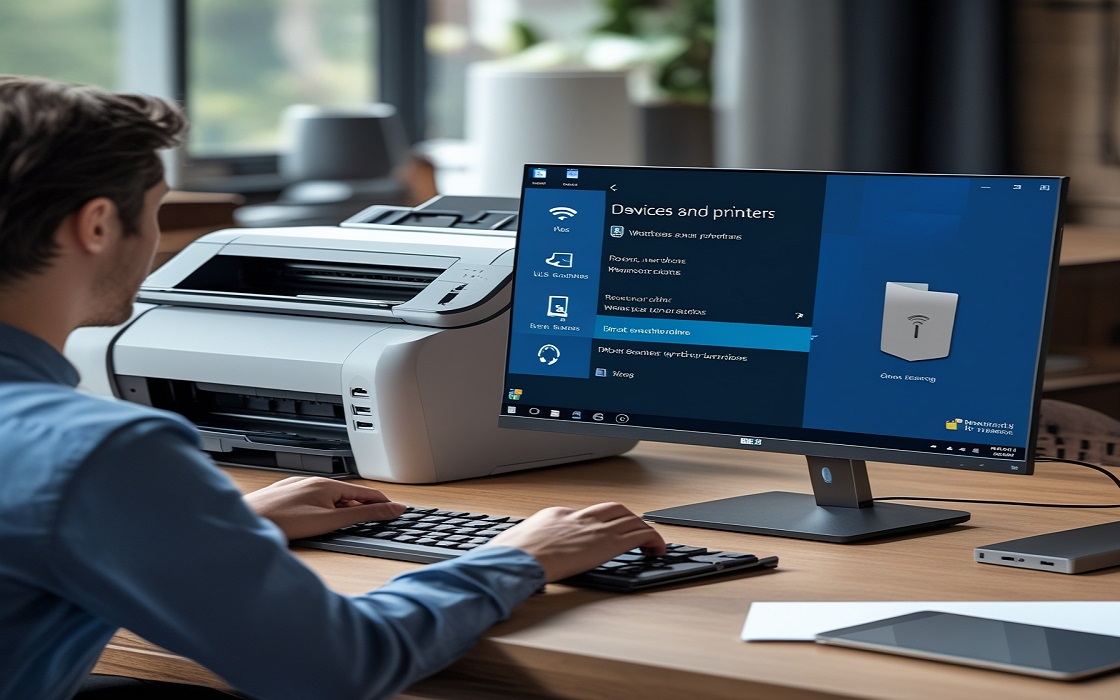
🖨️ 𝗖𝗮𝗻’𝘁 𝗽𝗿𝗶𝗻𝘁? 𝗟𝗲𝘁’𝘀 𝗳𝗶𝘅 𝘁𝗵𝗮𝘁: 1️⃣ 𝗖𝗵𝗲𝗰𝗸 𝗣𝗿𝗶𝗻𝘁𝗲𝗿 𝗖𝗼𝗻𝗻𝗲𝗰𝘁𝗶𝗼𝗻: Ensure your printer is properly connected via USB or Wi-Fi. 2️⃣ 𝗦𝗲𝘁 𝗣𝗿𝗶𝗻𝘁𝗲𝗿 𝘁𝗼 𝗢𝗻𝗹𝗶𝗻𝗲: Go to Devices and Printers →…
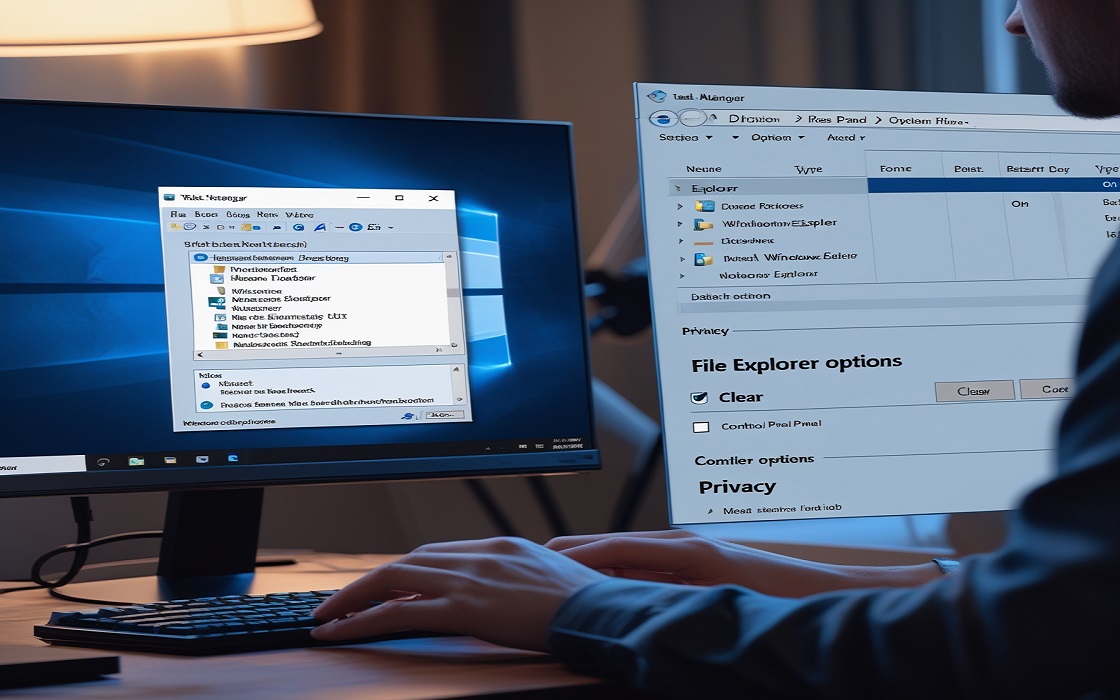
📂 𝗖𝗮𝗻’𝘁 𝗮𝗰𝗰𝗲𝘀𝘀 𝘆𝗼𝘂𝗿 𝗳𝗶𝗹𝗲𝘀? 𝗛𝗲𝗿𝗲’𝘀 𝘁𝗵𝗲 𝗳𝗶𝘅: 1️⃣ 𝗥𝗲𝘀𝘁𝗮𝗿𝘁 𝗙𝗶𝗹𝗲 𝗘𝘅𝗽𝗹𝗼𝗿𝗲𝗿: Press Ctrl + Shift + Esc to open Task Manager. Find Windows Explorer, right-click, and select Restart. 2️⃣ 𝗖𝗹𝗲𝗮𝗿…

𝗙𝗶𝘅 “𝗨𝗦𝗕 𝗗𝗲𝘃𝗶𝗰𝗲 𝗡𝗼𝘁 𝗥𝗲𝗰𝗼𝗴𝗻𝗶𝘇𝗲𝗱” 𝗘𝗿𝗿𝗼𝗿 💾 𝗨𝗦𝗕 𝗻𝗼𝘁 𝘄𝗼𝗿𝗸𝗶𝗻𝗴? 𝗟𝗲𝘁’𝘀 𝘀𝗼𝗹𝘃𝗲 𝗶𝘁: 1️⃣ 𝗧𝗿𝘆 𝗮 𝗗𝗶𝗳𝗳𝗲𝗿𝗲𝗻𝘁 𝗣𝗼𝗿𝘁: Plug the USB into another port to rule out hardware issues. 2️⃣ 𝗥𝗲𝘀𝘁𝗮𝗿𝘁…

